How do you reply to your boss in Teams or Slack?
Answer the question in the first words, then add the one fact your boss needs, such as a time or what you’re waiting for. In ReplyContext on your iPhone you type that roughly and get one short reply to paste into the chat.
Your boss asks in Teams whether the budget deck is ready for tomorrow at 9. You’re in a taxi. It isn’t ready: two slides are missing and you’ll send it tonight. You know the answer. You’d rather not send it to your boss in lower case with typos.
For iPhone with iOS 18.4 or later
Your boss’s question and your answer
You share a screenshot of the chat, type the answer in a few words and tap Draft Reply.
Work chat
Your boss asks if the deck is ready
Microsoft Teams · Slack
Budget 2027
4 members
Message:NLNora Lind10:12
Is the budget deck ready for tomorrow’s 9:00?
 ReplyContextYou type
not yet, 2 slides missing. will send it tonite by 8
Reply:MEYou10:20
Not yet, 2 slides missing. Will send it tonight by 8.
Reply
“tonite” is spelled “tonight”. The only deadline in the reply is the one you typed.
The answer is in the first two words
Your boss reads “Not yet” before anything else, as you typed it. The reason and the time follow.
No deadline you didn’t give
You typed “tonight by 8”, and that is the only promise in the reply. ReplyContext is built not to add a deadline, an apology or a reason you didn’t state.
As short as a chat message
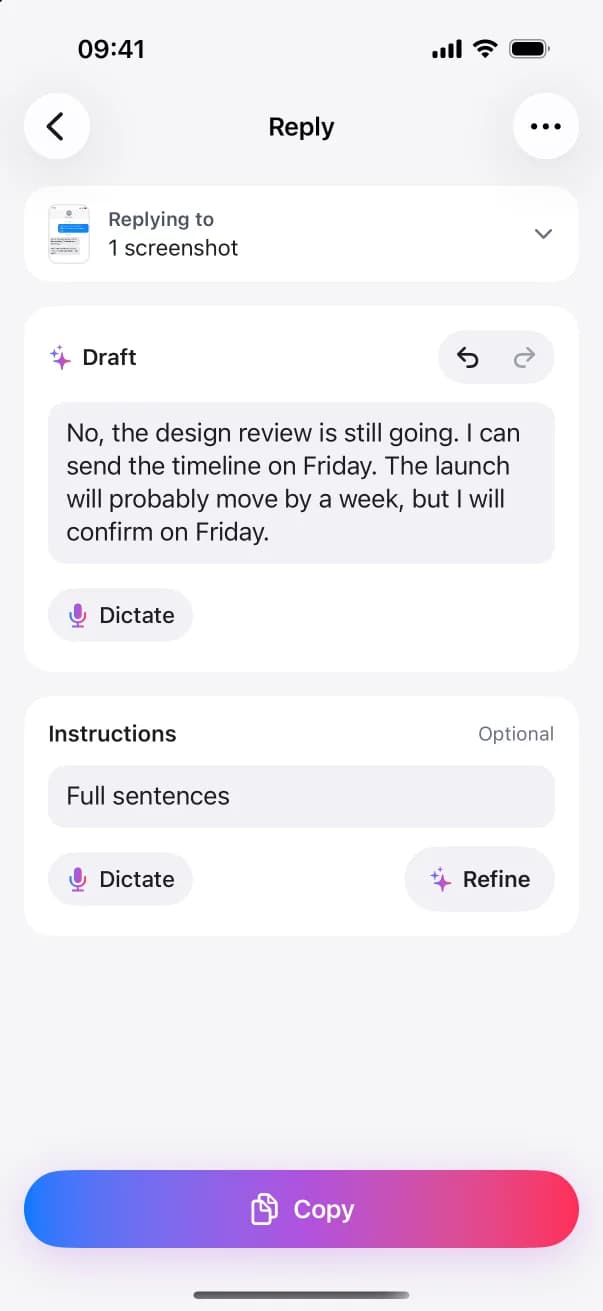
The reply stays as short as your words, which suits a work chat. For an email to the whole team, tap Add instructions, type “full sentences” and tap Refine.
How to answer your boss with ReplyContext
- 1
Screenshot the chat
Take a screenshot of the message in Teams or Slack, tap Share and choose ReplyContext. Or copy the message and paste it under Replying to.
- 2
Type the answer, or say it
A few words are enough: “not yet, 2 slides missing, will send it tonight by 8”. With your hands full, tap Dictate in the app and say them.
- 3
Tap Draft Reply
Read the one reply you get. Check the time and the numbers, and change any word yourself.
- 4
Paste it into the chat
Tap Copy, switch back to Teams or Slack, paste the reply and send it. Your boss sees a normal message from you.
Questions and answers
Will it make me sound too formal for a chat?
No. It keeps your tone and your length. “Not yet” stays “Not yet”. It only gets more formal when you type an instruction such as “more formal” and tap Refine.
Can it soften bad news for me?
Only when you ask. Without an instruction the reply says what you typed. Tap Add instructions, type “friendlier” and tap Refine, and it changes the tone of the same reply.
What if I don’t have the answer yet?
Type what you do know, such as “checking with finance, answer by noon”. If your words leave out a detail the reply needs, the app can ask one quick question instead of guessing.
Does my company’s chat get connected to ReplyContext?
No. ReplyContext isn’t connected to Teams or Slack and can’t read your chats. It only gets the message you share or paste, and it never sends anything.
Try it on the next message you need to answer
Download on the App StoreFor iPhone with iOS 18.4 or later