How do you get a reply from a screenshot of a message?
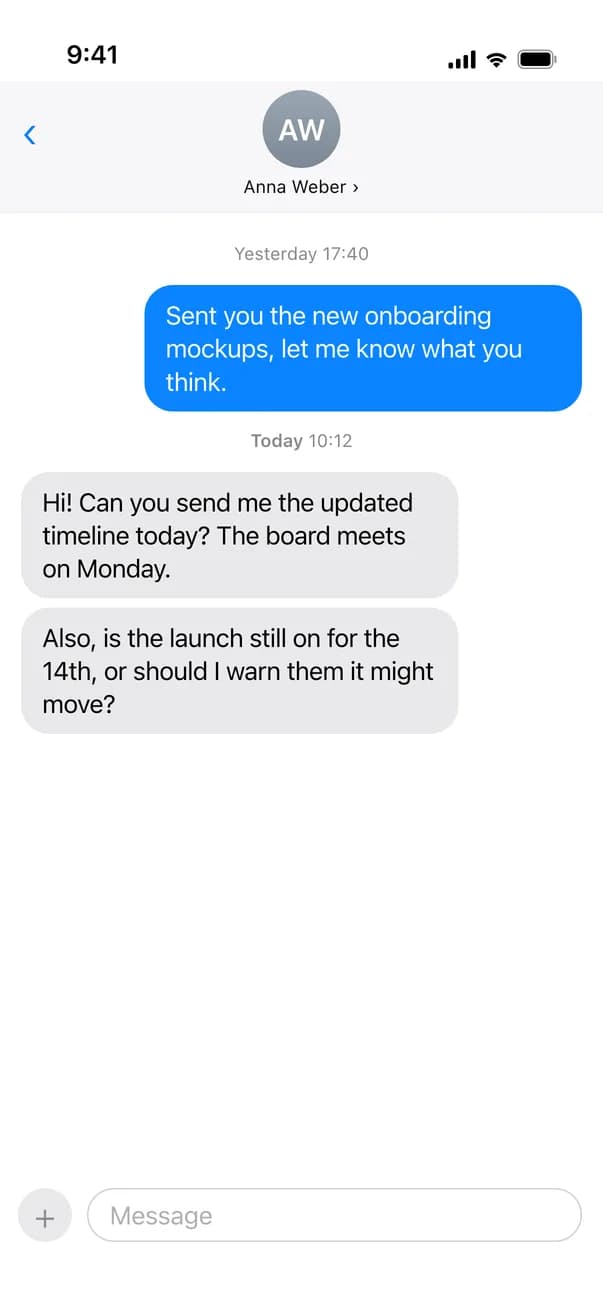
Share the screenshot to ReplyContext on your iPhone, type roughly what you want to answer and tap Draft Reply. You get one reply written from your words, and you paste it into the chat yourself.
Not every app lets you share or copy a single message, and a group chat is often several messages you’d have to copy one by one. A screenshot has all of it. In this one, a seller offers two times to come and see a bike, and you know which one you want.
For iPhone with iOS 18.4 or later
From a screenshot to a reply you can send
You share the screenshot, type the time you want and tap Draft Reply.
Screenshot
A seller offers two times to see a bike
LinkedIn · Messenger
LOLuis Ortega
Road bike, size M
Message:LOThe bike is still available. You could come and see it on Saturday at 10 or Sunday at 4. Which is better?
11:24
 ReplyContextYou type
sun at 4 pls. can u send the address
Reply:Sunday at 4, please. Can you send the address?
11:31
Write a message…
The reply answers the question in the screenshot with the day you typed. “sun”, “pls” and “u” are written out.
It reads the screenshot, you give the answer
ReplyContext reads the message in the picture, so the reply fits the question. What the reply says comes from your words: Sunday at 4, and the address.
Up to three screenshots
A long conversation doesn’t fit on one screen. In the app you can add up to three screenshots from Photos under Replying to.
One reply, and you can edit it
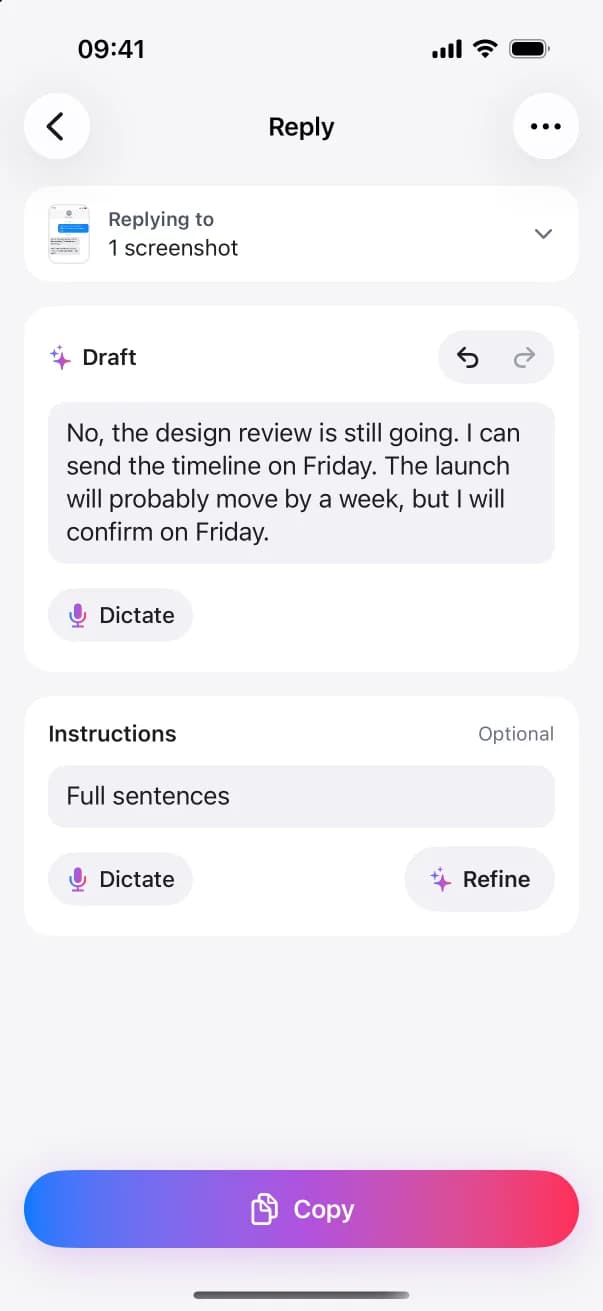
You get one reply that says what you typed. Change any word, with undo and redo, before you copy it.
How to reply from a screenshot with ReplyContext
- 1
Take a screenshot
Have the message on screen, and the messages before it if they matter for your answer.
- 2
Share it to ReplyContext
Tap Share on the screenshot and choose ReplyContext. Or open the app, tap New Reply and add the screenshot from Photos.
- 3
Type what you want to say
Type your answer in a few words in the What do you want to say? field. Then tap Draft Reply.
- 4
Take the reply back
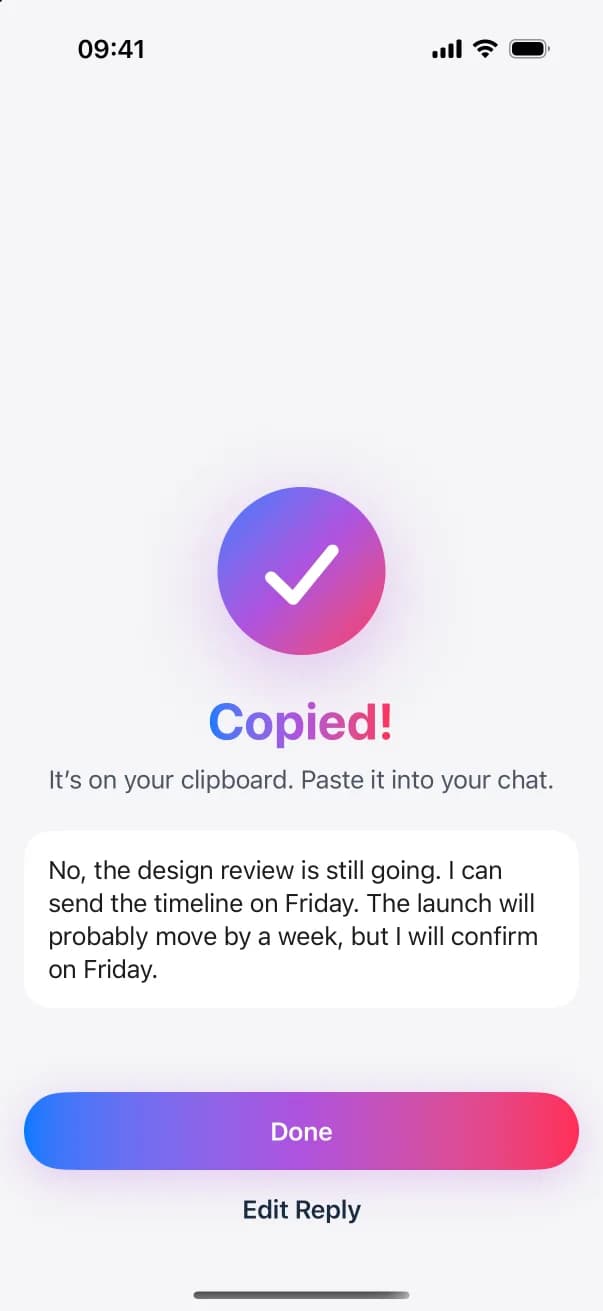
Tap Copy, go back to the app the screenshot came from, paste the reply and send it yourself.
Questions and answers
Can it write the reply from the screenshot alone?
It needs your words. Type or dictate a few, such as “sunday at 4”, and it writes the reply from them. It’s built not to make up an answer for you.
What happens to my screenshot?
It goes through the ReplyContext server in Germany to Google Gemini, only to write your reply, and the server doesn’t keep it. On your iPhone it stays with that reply until the reply is deleted, by you or by your Reply History setting.
Can I crop the screenshot first?
Yes. Crop it before you tap Share, and only that part goes to ReplyContext.
Which apps can the screenshot come from?
Any app you can take a screenshot in, such as WhatsApp, Messages, Teams, Slack or LinkedIn.
Try it on the next message you need to answer
Download on the App StoreFor iPhone with iOS 18.4 or later