Work email
How do you reply to a work email from your phone?
Share the email to ReplyContext on your iPhone, type your answer in a few rough words and tap Draft Reply. You get one reply in your own words, and you paste it into the email and send it yourself.
A client asks for a rough timeline so she can plan the launch. You read it on your phone between two meetings. You know the answer: pilot in March, full rollout in April, details on Friday. Turning that into an email you’d put your name under takes longer than the answer itself.
For iPhone with iOS 18.4 or later
The email, your rough words, the reply
You share the email to ReplyContext, type a few words and tap Draft Reply.
Work
A client asks for the rollout timeline
Outlook · Gmail
Message:MRMaria Rossi8:05
to me
Hi, could you share a rough timeline for the rollout? We’d like to plan the launch around it. Thanks, Maria
 ReplyContextYou type
pilot in march, full rollout april, details on friday
Reply:MEYou8:31
to Maria Rossi
Pilot in March, full rollout in April. Details on Friday.
Capital letters and punctuation are fixed. The three facts are yours, in your order.
It says what you typed
The reply holds your three facts in your order, with capital letters and punctuation fixed. It stays as short as your words.
No greeting you didn’t write
ReplyContext is built not to add a greeting, a sign-off, an apology or a promise you didn’t state. If you want “Hi Maria,” at the top, type it with your words.
More formal when you ask
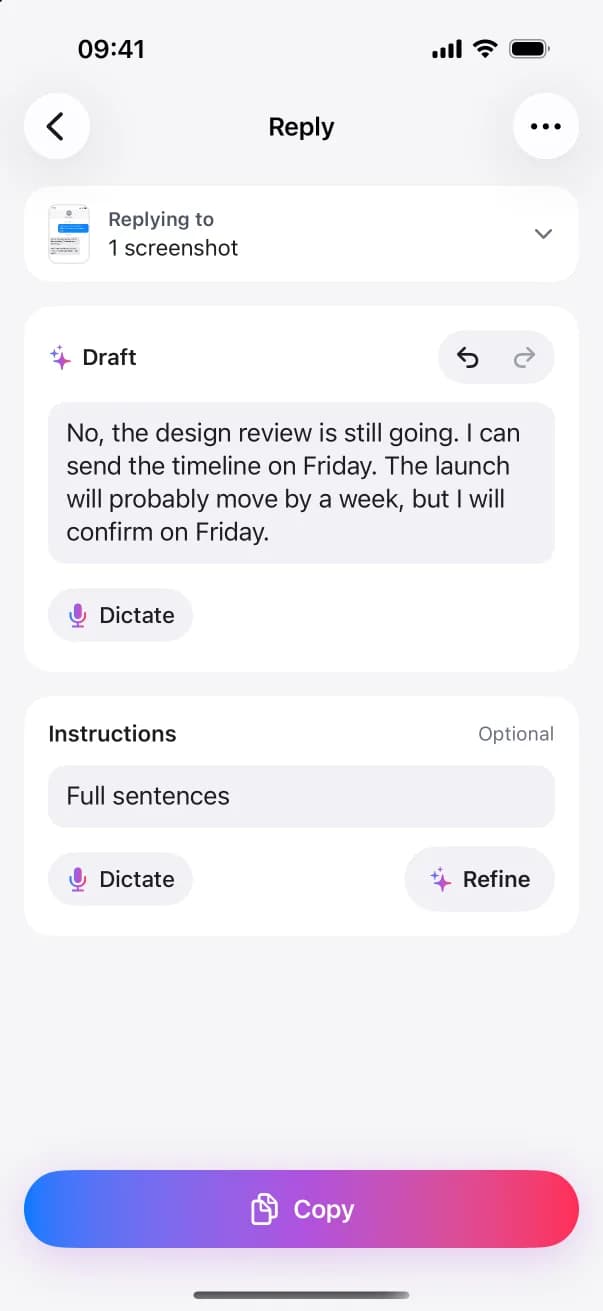
Tap Add instructions, type “more formal” or “full sentences”, and tap Refine. It changes the same reply, and the words that changed are marked for a moment.
Step by step
How to reply to an email with ReplyContext
- 1
Bring in the email
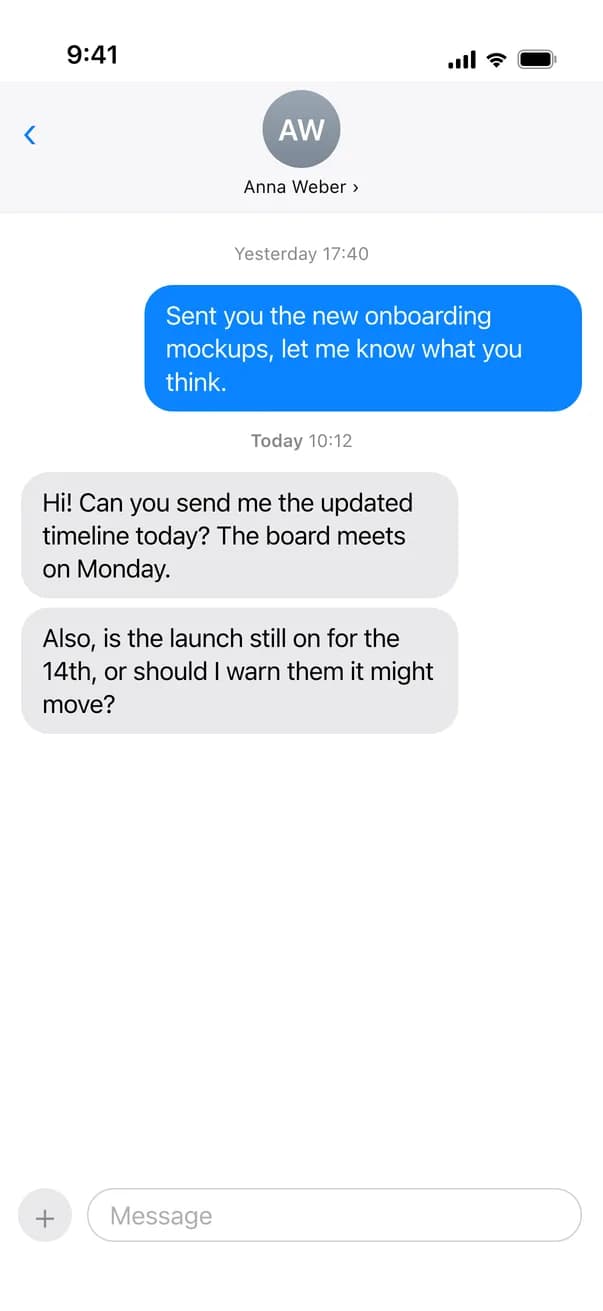
Take a screenshot of the email and share it to ReplyContext, or select the text, tap Share and choose ReplyContext. You can also copy the text and paste it under Replying to.
- 2
Type the answer roughly
A few words are enough. In the app you can also tap Dictate and say them.
- 3
Tap Draft Reply
You get one reply. Change any word yourself, or add an instruction and tap Refine.
- 4
Copy it into the email
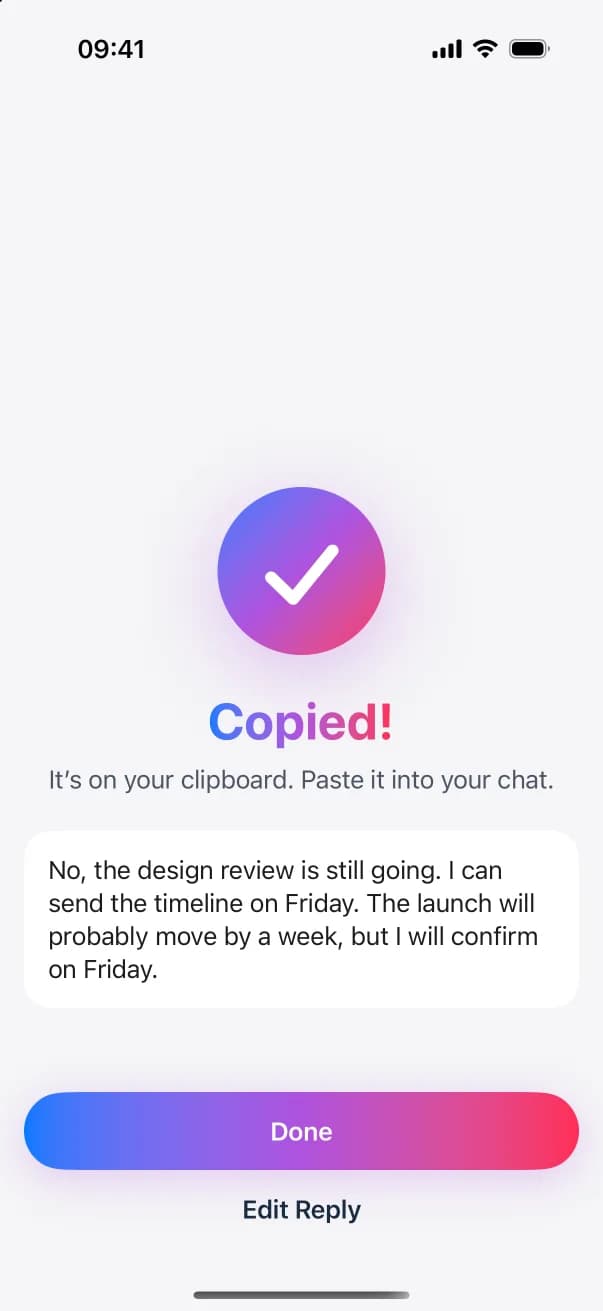
Tap Copy, switch back to your mail app, paste the reply and send it. ReplyContext never sends anything for you.
FAQ
Questions and answers
Does ReplyContext send the email?
No. It isn’t connected to your mail app. You tap Copy, paste the reply into the email and send it yourself.
Does it add a greeting and a sign-off?
Only if you write them. Type “hi maria” before your answer and “thanks” after it, and both stay in the reply.
Does it work for a message from my boss in Teams or Slack?
Yes. It works the same for any message you can share, screenshot or copy, such as a note from your boss in Teams or from a colleague in Slack.
What happens to the client’s email?
It’s only used to write the reply you asked for, with Google Gemini through the ReplyContext server in Germany. We don’t keep it on our servers. On your iPhone it stays with that reply until the reply is deleted, by you or by your Reply History setting.
Try it on the next message you need to answer
Download ReplyContext, share the message, say what you mean, and copy your reply.
Download on the App StoreFor iPhone with iOS 18.4 or later