How do you reply to a recruiter on LinkedIn?
Say in the first sentence whether you’re interested, then add a time for a call or the one thing you want to know. In ReplyContext on your iPhone you type that in rough words and get one reply to paste into LinkedIn.
A recruiter writes about a product design role and asks for a call this week. You read it on the train. You’re interested, Thursday after 4 works, and you want to know the salary range first. Typing that with your thumbs, for someone who may hire you, is the part that takes time.
For iPhone with iOS 18.4 or later
A recruiter’s message and your reply
You bring the message into ReplyContext, type three things and tap Draft Reply.
Job search
A recruiter asks for a call this week
LinkedIn · Messenger
EMElena Marsh
Recruiter
Message:EMHi, I’m hiring a senior product designer for a fintech client in Berlin. Would you be open to a short call this week?
11:24
 ReplyContextYou type
yes interested. thu after 4 works. whats the salary range
Reply:Yes, interested. Thursday after 4 works. What's the salary range?
11:31
Write a message…
“thu” is written out and the question gets its question mark. The reply doesn’t thank her for reaching out, because you didn’t.
Your answer comes first
The reply opens with “Yes, interested”, the way you typed it. The time and your question follow in your order.
No thanks you didn’t write
Most guides tell you to thank the recruiter first. ReplyContext is built not to add a thank-you or a greeting you didn’t type. If you want “Thanks for reaching out”, type it and it stays.
Your question stays your question
The question about the salary range is in the reply the way you asked it, with a question mark. The app doesn’t soften it or add a reason for asking.
How to answer a recruiter with ReplyContext
- 1
Screenshot the conversation
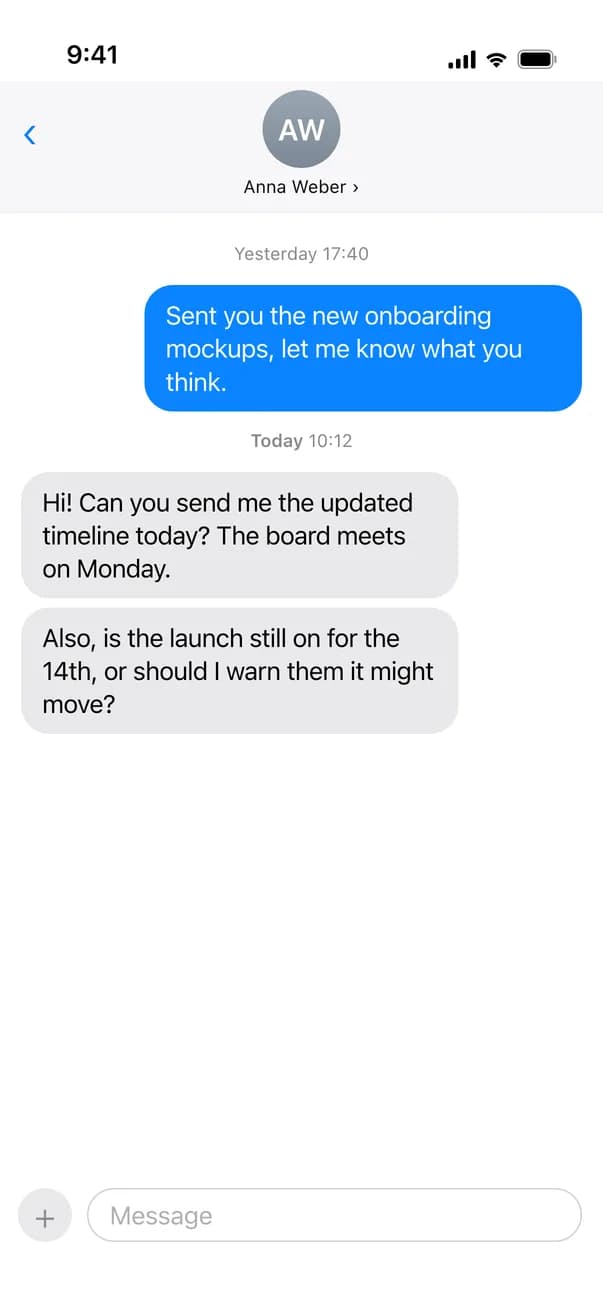
Take a screenshot of the conversation in LinkedIn, tap Share and choose ReplyContext. Or copy the message, tap New Reply and paste it under Replying to.
- 2
Type your answer
Say if you’re interested, when you can talk and what you want to know. “yes interested, thu after 4, whats the salary range” is enough.
- 3
Tap Draft Reply
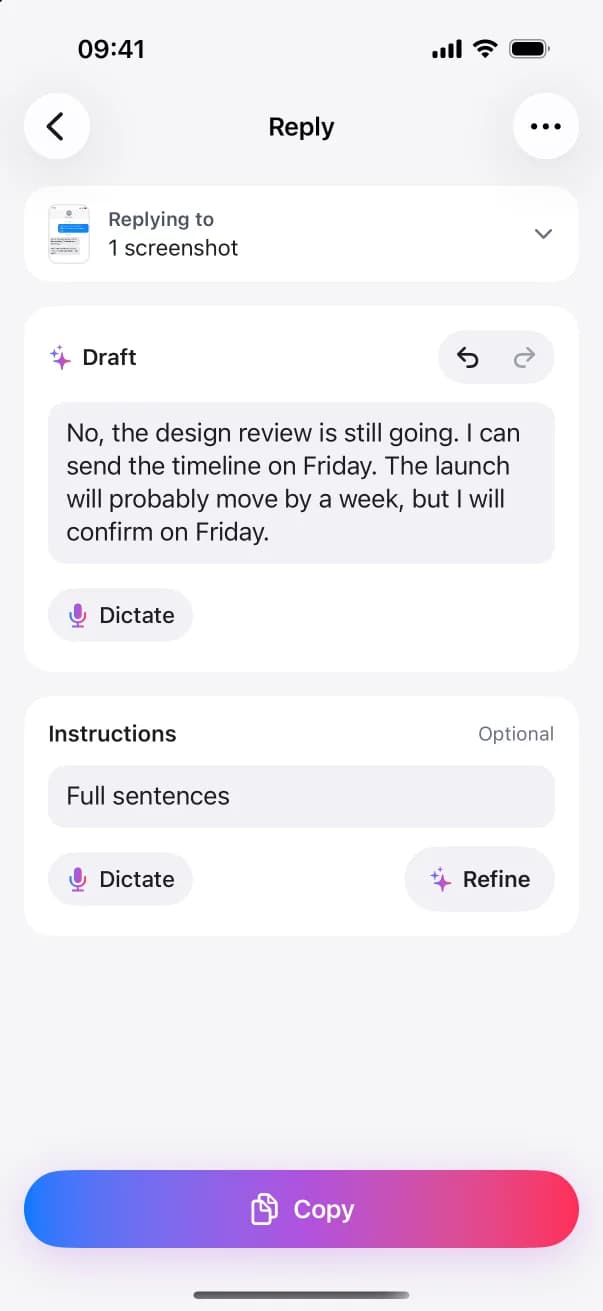
You get one reply. If it’s too short for a first contact, tap Add instructions, type “full sentences” and tap Refine.
- 4
Paste it into LinkedIn
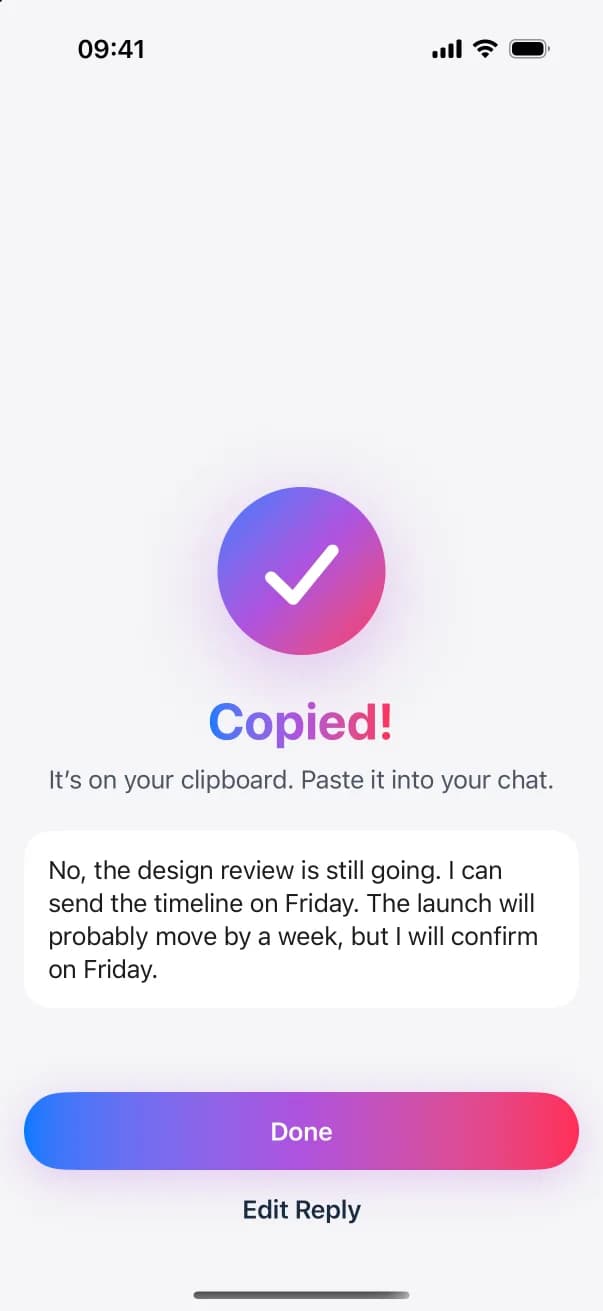
Tap Copy, go back to the conversation, paste the reply and send it yourself.
Questions and answers
Can it write the reply when I’m not interested?
Yes. Type your no the way you’d say it, such as “not looking right now, maybe next year”. The reply says that and adds no excuse and no promise to stay in touch.
Does it add details about me, like my experience?
No. The reply holds only what you type. If the recruiter should know your notice period or the salary you expect, type it in your rough words.
Does it work when the recruiter writes by email?
Yes. Share the email or a screenshot of it to ReplyContext. The steps are the same, and you paste the reply into your mail app.
Is ReplyContext connected to LinkedIn?
No. It can’t read your LinkedIn messages and it can’t send anything. You bring the message in as a screenshot or as copied text, and you paste the reply into LinkedIn yourself.
Try it on the next message you need to answer
Download on the App StoreFor iPhone with iOS 18.4 or later